WiFi Connection Between the Elektra Verve and Your Mobile Device
The WiFi network is generated by “VERVE”. No internet connection needed. After activation, the user machine interface appears directly on your Android device.

White Android robot logo above the word ANDROID in stylized font, all on a black background—perfect for showcasing your mobile device’s WiFi connection. © 2025 1st-line.com
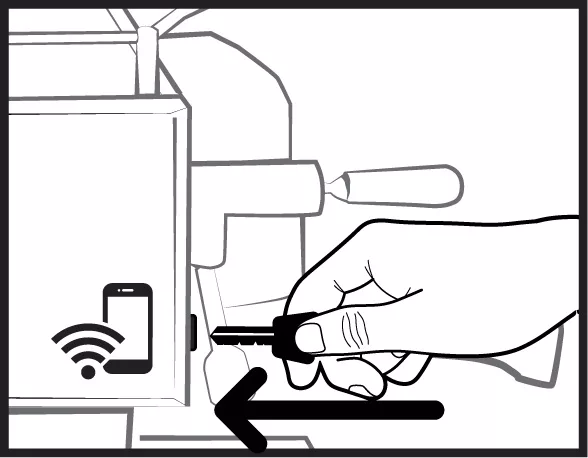
A hand inserts a USB device into a port on an Elektra Verve machine, with a mobile device and WiFi connection symbol shown nearby. A bold arrow points left, indicating the direction of insertion. © 2025 1st-line.com

Insert the key in the ignition lock marked with the symbol shown above.

A hand turns a knob or screw with an arrow indicating the direction to rotate it, suggesting how to tighten or loosen the component—ideal guidance when adjusting your Elektra Verve for optimal performance. © 2025 1st-line.com

Turn the key clockwise.

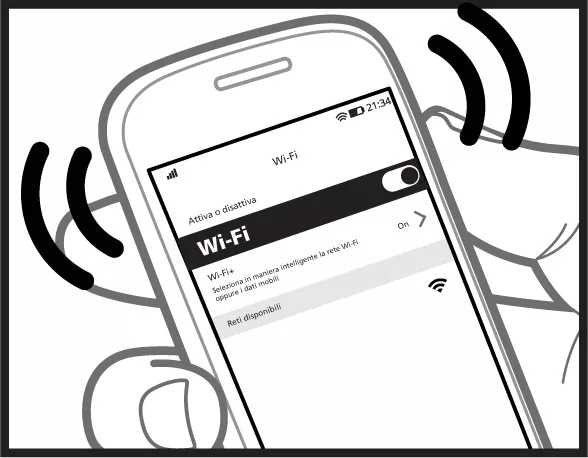
A hand holds a mobile device with the Wi-Fi settings screen open in Italian, showing WiFi connection is on and available networks. Black lines illustrate wireless signals from the device. © 2025 1st-line.com

Activate the WiFi on your Android Device.

A hand holds a mobile device showing WiFi connection settings. The screen displays the Wi-Fi menu, highlighting a network called Elektra Verve-xxxxxx as connected and requiring authorization. Text is in Italian. © 2025 1st-line.com

Choose the elektra wi-fi network. The alphanumeric code depends on the machine.
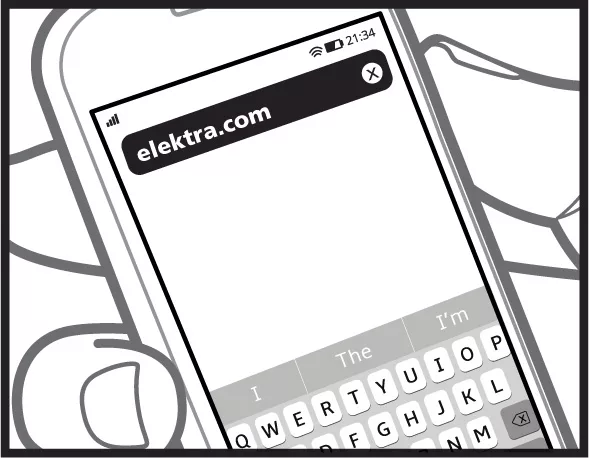
A hand holding a mobile device with a web browser open, displaying the URL elektra.com in the address bar and the on-screen keyboard visible below, connected via WiFi connection. © 2025 1st-line.com

Open your browser and type elektra.com
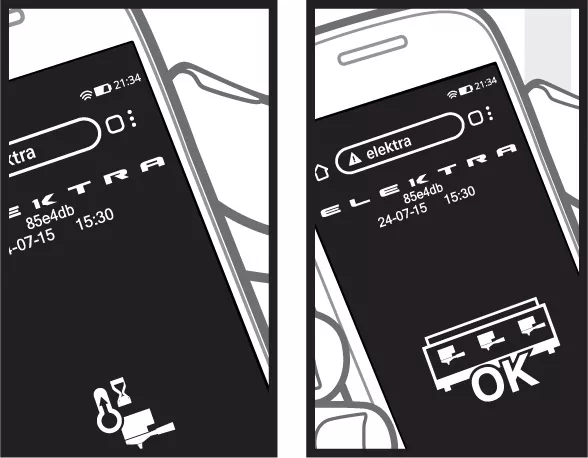
Two black-and-white illustrations show a mobile device screen with the word elektra typed. The left screen displays warning icons for WiFi connection issues, while the right shows an OK sign and a checkmark at the bottom. © 2025 1st-line.com

The user-machine interface opens on the device. After the brewing group has warmed up, the Verve will be ready to operate.

The WiFi network is generated by “VERVE”. No internet connection needed. After activation, the user machine interface appears directly on the iOS Device.

A white Apple logo appears above the word iOS in bold white letters, separated by a horizontal white line, all set against a black background—perfect for navigating your mobile device. © 2025 1st-line.com
A hand plugs a cable into a mobile device’s port, with a smartphone and WiFi connection symbol hinting at charging or connecting. A bold arrow points to the port, suggesting seamless setup with Elektra Verve ease. © 2025 1st-line.com

Insert the key in the ignition lock marked with the symbol shown above.

A hand turning a knob or screw to the left, indicated by a curved arrow, as part of an assembly or adjustment process on the Elektra Verve. © 2025 1st-line.com

Turn the key clockwise.

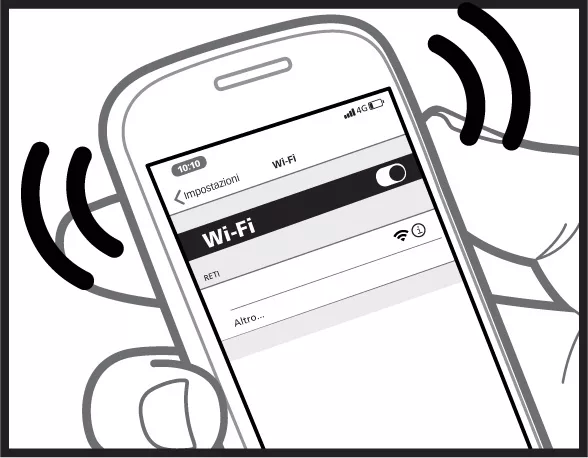
A hand holds a mobile device showing Wi-Fi settings in Italian, the WiFi connection switched on with one network available. Black curved lines indicate wireless signals emitting from the phone. © 2025 1st-line.com

Activate the WiFi on your iOS Device.

A hand holding a mobile device shows the Wi-Fi settings screen in Italian, highlighting the elektra-xxxxxxx network for an Elektra Verve WiFi connection. The Wi-Fi toggle is on, and the thumb is about to select the network. © 2025 1st-line.com

Choose the elektra wi-fi network. The alphanumeric code depends on the machine.

Black and white illustration of a hand holding a mobile device displaying the ELEKTRA app, with date, time, a key and padlock icon, and an Accedi (Access) option—ideal for managing Elektra Verve access over WiFi connection. © 2025 1st-line.com

The user-machine interface opens on the iOS Device. Wait for the brewing group to warm up.

A hand holds a mobile device displaying a login screen for an app called Elektra Verve, showing a code, date, time, and a graphic with the text OK beneath it—perfect for secure access via WiFi connection. © 2025 1st-line.com

After the brewing group has warmed up, the Verve will be ready to operate.